
How to insert a sparkle glitter into a name tag in PSP 9
Put Glitters in Patterns folder, Install Chickybom font
1. Open PSP 9 (any version should work) and create a new file 600 x 200, transparent.
2. Choose a fat font of your own choice, for this tutorial we will be using Chickybom which you can find at dafont.com (free)!!
3. Type your name using a 72 pt. a random color, (I'm using red, HTML #d50202) with a 2 pt. black stroke.
4. Open your crop too, merged opaque and apply.
5. Layers, Convert to Raster Layer, Merge visible (or merge down)
6. Go to selections: select all, float, defloat, (marching ants) modify and contract by 2 pixels.
7. Layers Duplicate and Duplicate again (so you have three layers) Rename Raster 1 to Glitter-Purple1 Rename Copy of Raster 1 to Glitter-Purple2 Rename Copy of Raster 1 to Glitter-Purple3
(See Glitter Sample 1)
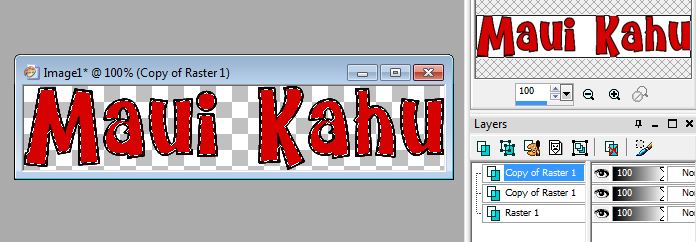
8. Open Materials, Background Pattern, Select Glitter-Purple3
9. Paintbrush tool to Size 76, hardness 50, Step 25, Density 100, Thickness 100 Rotation 0, Opacity 100 (Stroke Contitinuous, Wet look Paint Unchecked)
10. Click on Layer "Glitter-Purple 3" and Holding down the right click, Paint all over the inside of the marching ants (or use the paint bucket tool, but if you're using a smaller pica font, it's easier to use the paintbrush)
11. Check Visibility Toggle over Glitter-Purple3 Layer
12. Eyedropper Tool, Right Click Materials, Background Pattern, Glitter-Purple2
13. Repeat Steps 10 above for Glitter Purples 2 and 1
14. Uncheck all Visibility Toggles (Important Step)
15. Selections, Select None
16. Save as Paint Shop Pro Image, (PSP Image), Options, PSP 7 Compatible, Glitter Name Tag.
17. Go to Animation Shop
18. Open PSP File Glitter Name Tag
19. File/Optimization Wizard
20. Select Window 1, Animated GIF file; Next, Window 2, 127 Colors
See samples below:
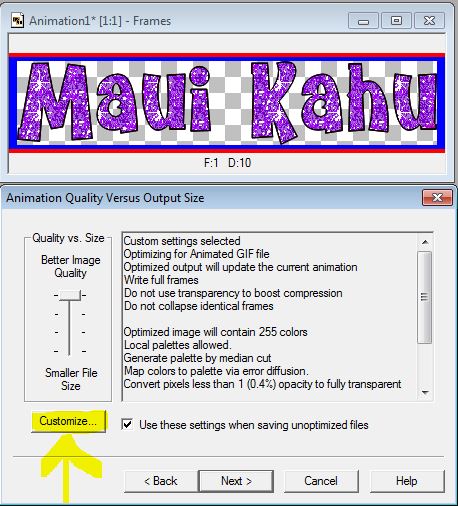
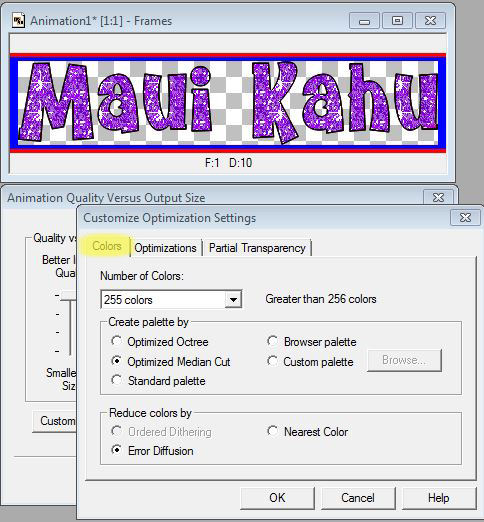
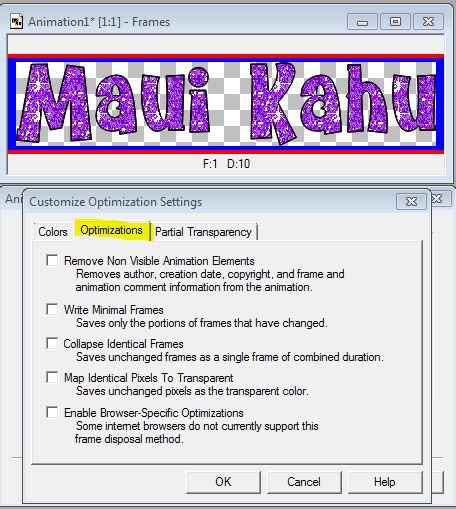
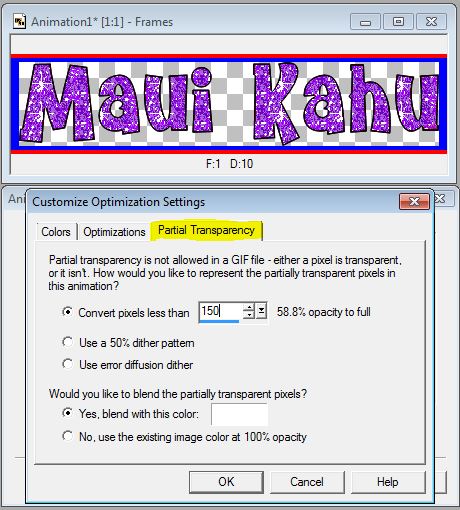
OK, Next, Next, Next, Finish
19. Save as Glitter Name Tag-Your Name

for more converted glitters (PSP ready) click here